S3
This page provides information for connecting your application to your Amazon S3 bucket and using queries to manage its content.
This datasource can also be used to connect to any S3-compatible object storage provider such as Upcloud, Digital Ocean Spaces, Wasabi, DreamObjects, MinIO, and Google Cloud Storage (using S3-compatible HMAC credentials).
Connect S3
If you are a cloud user, you must whitelist the IP address of the Appsmith deployment 18.223.74.85 and 3.131.104.27 on your S3 instance before connecting to the bucket. For more information about whitelisting on Amazon, see Managing access based on specific IP addresses.
Connection parameters
The following section is a reference guide that provides a complete description of all the parameters to connect to an S3 bucket.
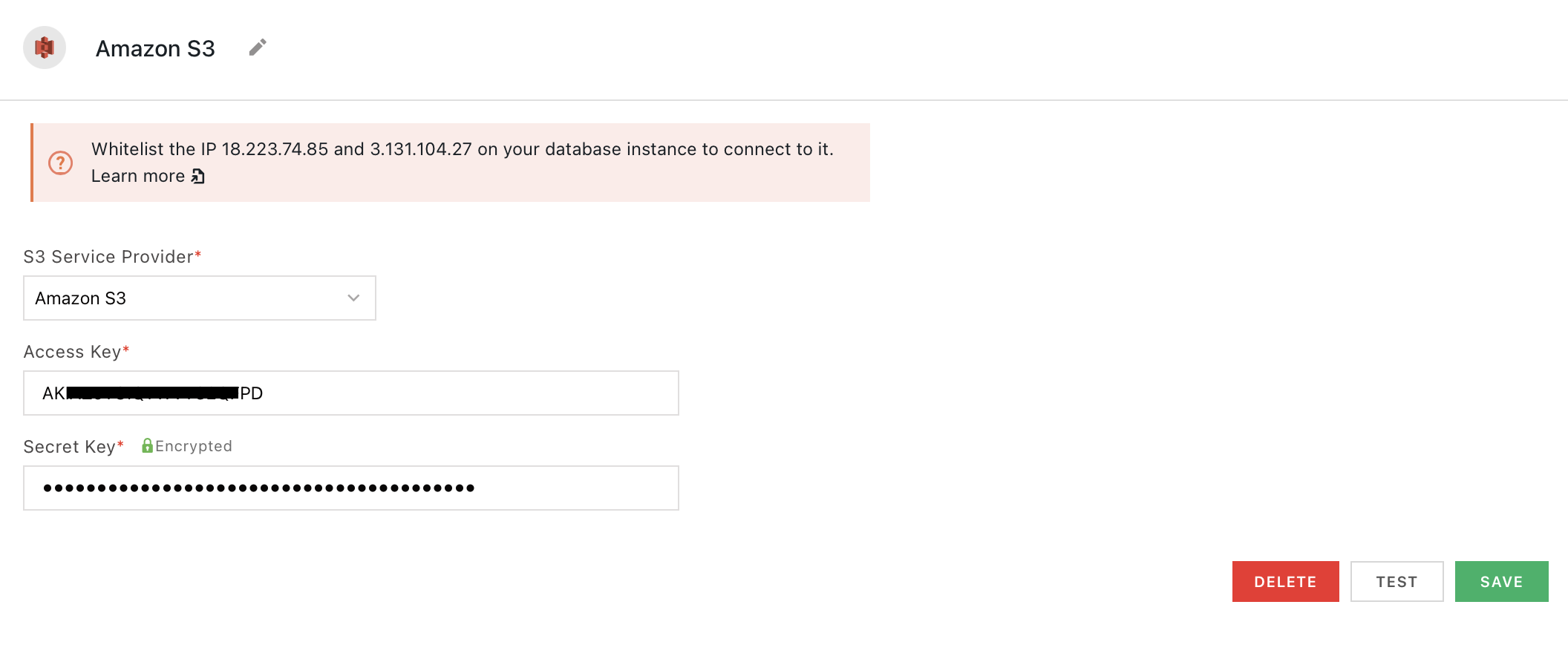
S3 service provider
- Amazon S3
- Upcloud
- Digital Ocean spaces
- Wasabi
- DreamObjects
- MinIO
- Google Cloud Storage
- Other
Access key
The identifier for programmatic access to your bucket or account. For Amazon S3, this is the IAM user Access key ID. To create and manage keys in AWS, see How an IAM administrator can manage IAM user access keys and Manage access keys for IAM users. For the IAM actions Appsmith uses, see IAM permissions for S3 queries.
Secret key
The secret paired with the access key. For Amazon S3, this is the Secret access key. You can only view or download it when the key is created; see Manage access keys for IAM users. Store it in a secrets manager or secure deployment configuration.
Endpoint URL
Region
Identifies which regional data center to connect to. This field appears when S3 service provider is MinIO or Other.
Default bucket
This field appears when S3 service provider is Google Cloud Storage. Enter the bucket Appsmith should use for the connection test and default operations. It is required for that provider.
Missing permissions for object operations (list objects in a bucket, get, put, or delete) can cause queries to fail even when the datasource test succeeds.
For Amazon S3, the connection test calls the AWS API to list buckets in your account. If that call returns access denied because s3:ListAllMyBuckets is not allowed, Appsmith may still report a successful test (the credentials are treated as valid). Bucket discovery in the datasource UI can then fail; use known bucket names in your queries, or grant s3:ListAllMyBuckets if you need account-wide bucket listing.
For Google Cloud Storage, the test uses the bucket you set in Default bucket. Ensure that bucket exists and the HMAC identity can list objects in it.
Access keys and AWS IAM setup
Appsmith's S3 datasource uses long-term access key credentials on the server to sign requests to your object storage API.
| Appsmith field | AWS (and S3-compatible APIs) |
|---|---|
| Access key | Access key ID (or provider equivalent) |
| Secret key | Secret access key (or provider equivalent) |
For Amazon S3, create a dedicated IAM user when possible, attach a minimal policy (see Example least-privilege policy), and rotate keys on a schedule. AWS documents the full workflow here:
- Create an IAM user in your AWS account
- How an IAM administrator can manage IAM user access keys (includes console steps under To create an access key for an IAM user)
- Manage access keys for IAM users (concepts, limits, and security practices)
IAM permissions for S3 queries
The plugin calls S3 APIs that map to the following IAM actions on AWS. Scope resources to the buckets and prefixes you use.
| Appsmith behavior | Typical IAM action |
|---|---|
| Test connection (Amazon S3) | s3:ListAllMyBuckets (see note under Connection parameters if this is denied) |
| Datasource structure (bucket list in UI) | s3:ListAllMyBuckets |
| List files | s3:ListBucket on the bucket ARN |
| Read file | s3:GetObject on object ARNs |
| Upload | s3:PutObject |
| Delete file / delete multiple | s3:DeleteObject |
| Signed URLs (GET) in list/upload flows | s3:GetObject on the relevant objects |
If you restrict policies to specific buckets and omit s3:ListAllMyBuckets, some UI features that depend on listing all buckets may not work; you can still run queries when you supply bucket names explicitly.
Example least-privilege policy
Replace your-bucket with your bucket name. Adjust the object ARN if you use only a prefix.
{
  "Version": "2012-10-17",
  "Statement": [
    {
      "Sid": "ListBucket",
      "Effect": "Allow",
      "Action": ["s3:ListBucket"],
      "Resource": "arn:aws:s3:::your-bucket"
    },
    {
      "Sid": "ObjectReadWriteDelete",
      "Effect": "Allow",
      "Action": ["s3:GetObject", "s3:PutObject", "s3:DeleteObject"],
      "Resource": "arn:aws:s3:::your-bucket/*"
    }
  ]
}
If Appsmith must list all buckets for testing and datasource structure, add a separate statement:
{
  "Sid": "ListAllBucketsForAppsmithUi",
  "Effect": "Allow",
  "Action": ["s3:ListAllMyBuckets"],
  "Resource": "*"
}
You can tighten access further with prefix conditions on s3:ListBucket and object keys. To create and attach a policy in AWS, see Define custom IAM permissions with customer managed policies and Create IAM policies (console).
Encryption with SSE-KMS
If the bucket uses SSE-KMS, the IAM principal often needs KMS permissions on the key used by the bucket (for example kms:Decrypt and kms:GenerateDataKey), in addition to S3 object permissions. See Protecting data with server-side encryption using AWS KMS keys (SSE-KMS) and Key policies in AWS KMS.
S3-compatible providers
For MinIO, Wasabi, DigitalOcean Spaces, and other S3-compatible services, use the same Access key, Secret key, Endpoint URL, and Region fields as required by the form. Permission names and console steps are provider-specific; follow that provider's documentation for creating keys and restricting access to your buckets.
Google Cloud Storage
Select Google Cloud Storage as the S3 service provider. Configure Access key and Secret key using HMAC keys for interoperability; to create and manage them, see Create and manage HMAC keys for service accounts. Set Default bucket to the bucket used for the connection test and your app. Use Google's documentation for bucket access and endpoint details for the S3-compatible XML API.
- Use a dedicated IAM user or service principal where possible, with least-privilege policies on the buckets you need.
- Store secrets securely; rotate access keys on a schedule.
- Ensure the policy allows
s3:ListBucket,s3:GetObject,s3:PutObject, ands3:DeleteObjecton the correct ARNs for AWS. - Add
s3:ListAllMyBucketsonly if you need account-wide bucket listing in the UI and tests without access issues. - Set Region, Endpoint URL, and Default bucket (for Google Cloud Storage) as the form requires.
- If you use SSE-KMS, grant the extra KMS permissions your key and bucket policies require.
Create queries
The following section is a reference guide that provides a complete description of all the read and write operation commands with their parameters to create S3 queries.
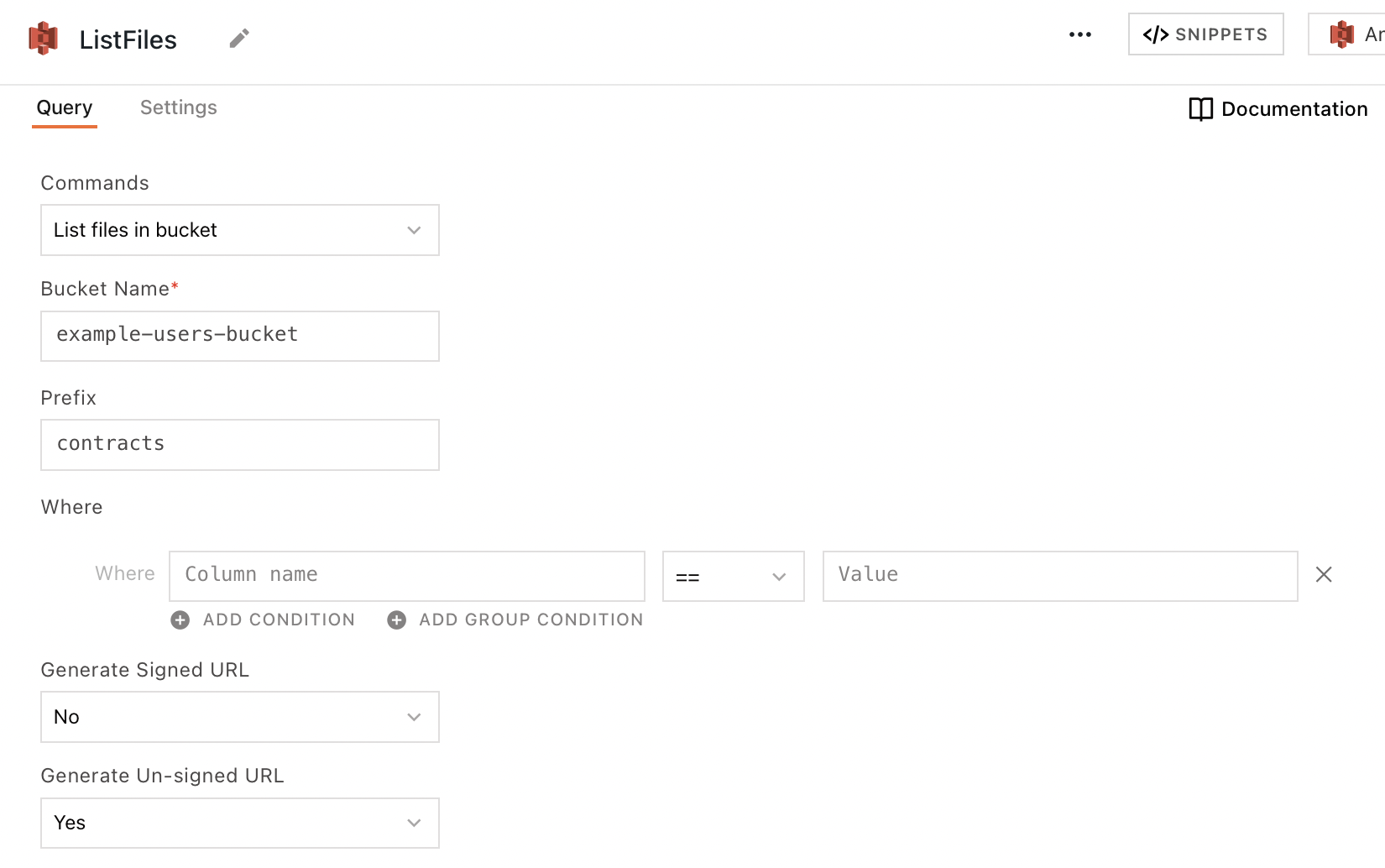
List files in bucket
This command returns an array of objects representing items that are contained within the bucket, each including at least a fileName property. The following section lists all the fields available for the List files in a bucket command.
Bucket name
The name of the S3 bucket to query.
Prefix
The directory path of the files you'd like to query.
For example, in sample/path/example.png, the Prefix is sample/path. Using the prefix sample/path with no filtering returns all files in the sample/path directory.
Where
These fields are used to create logic expressions that filter query results based on column values. Available comparison operators are ==, !=, in, and not in.
Generate signed URL
Requests an authenticated, user-accessible URL for each file in the response. Users may follow the link in their browser to see the content of the file. The URL expires after the amount of time specified in Expiry duration of signed URL.
Expiry duration of signed URL
The length of time in minutes that the returned Signed URL is valid. Accepts number values up to 10080 minutes (7 days).
Generate unsigned URL
Requests the plain URL for each file in the query response. This URL does not expire, but it can't be used to access the resource directly, only via API.
Sort by
Orders the query results in ascending or descending order based on a given column's value.
Pagination limit
Limits the number of results that can be returned in a single response. Expects an integer.
Pagination offset
Skips a given number of files before returning the further results. Expects an integer.
Create a new file
This command creates a new object in the S3 bucket. If a file by the same name or path already exists within the bucket, the old file is overwritten by the new one. The following section lists all the fields available for the Create a new file command.
Bucket name
The name of the S3 bucket to query.
File path
The name under which to save the file. Be sure to include directories as prefixes to the filename if necessary.
File data type
- Base64: Sends data from the Content field encoded in Base64 format.
- Text: Sends data from the Content field as plain text.
Expiry duration of signed URL
The length of time in minutes that the returned Signed URL is valid. Accepts number values up to 10080 minutes (7 days).
Content
The file data to be sent to the bucket. Expects a file object. You can use widgets such as a Filepicker or a Camera to upload files to S3. For guides on this subject, see Upload or Download Files to and from S3 or Upload Images to and from S3.
Create multiple new files
This command creates a batch of new objects in the S3 bucket. If a file by the same name/path already exists within the bucket, the old file is overwritten by the new one. The following section lists all the fields available for the Create multiple new files command.
Bucket name
The name of the S3 bucket to query.
Common file path
The prefix that is prepended to each of the new objects' file path as directories.
File data type
- Base64: Sends data from the Content field encoded in Base64 format.
- Text: Sends data from the Content field as plain text.
Expiry duration of signed URL
The length of time in minutes that the returned Signed URL is valid. Accepts number values up to 10080 minutes (7 days).
Content
The file data to be sent to the bucket. Expects an array of file objects. You can use widgets such as a Filepicker to upload files to S3. For a guide on this subject, see Upload Files to S3 and Download Files.
Read file
This command returns the data from a given file in your S3 bucket. By default, the raw content of the file is returned on the fileData property of the response. The following section lists all the fields available for the Read file command.
Bucket name
The name of the S3 bucket to query.
File path
The path to the file in your S3 bucket.
Base64 Encode File
- Yes: Incoming file data is encoded into Base64 format before it is returned.
- No: Incoming file data is returned as sent with no additional encoding.
If your fileData content is in Base64 format and needs to be decoded, use the JavaScript atob() method.
Delete file
This command deletes a given file from your S3 bucket. The following section lists all the fields available for the Delete file command.
Bucket name
The name of the S3 bucket to query.
File path
The path to the file in your S3 bucket.
Delete multiple files
This command deletes a batch of files from your S3 bucket. The following section lists all the fields available for the Delete multiple files command.
Bucket name
The name of the S3 bucket to query.
List of Files
Expects a JSON array of file paths to be deleted from the S3 bucket.
Troubleshooting
If you are experiencing difficulties, you can refer to the Datasource troubleshooting guide or contact the support team using the chat widget at the bottom right of this page.
See also
- Upload Files to S3 - Learn how to upload files to an S3 bucket using built-in integration and API configurations.
- Display and Lookup Data in List - Learn how to display query results in a List and enable users to look up data efficiently.
- Search and Filter Table Data - Guide on adding search and filter functionality to Tables for better data navigation.